Teleprompter article
Best YouTube Teleprompter Setup for Natural Video Delivery
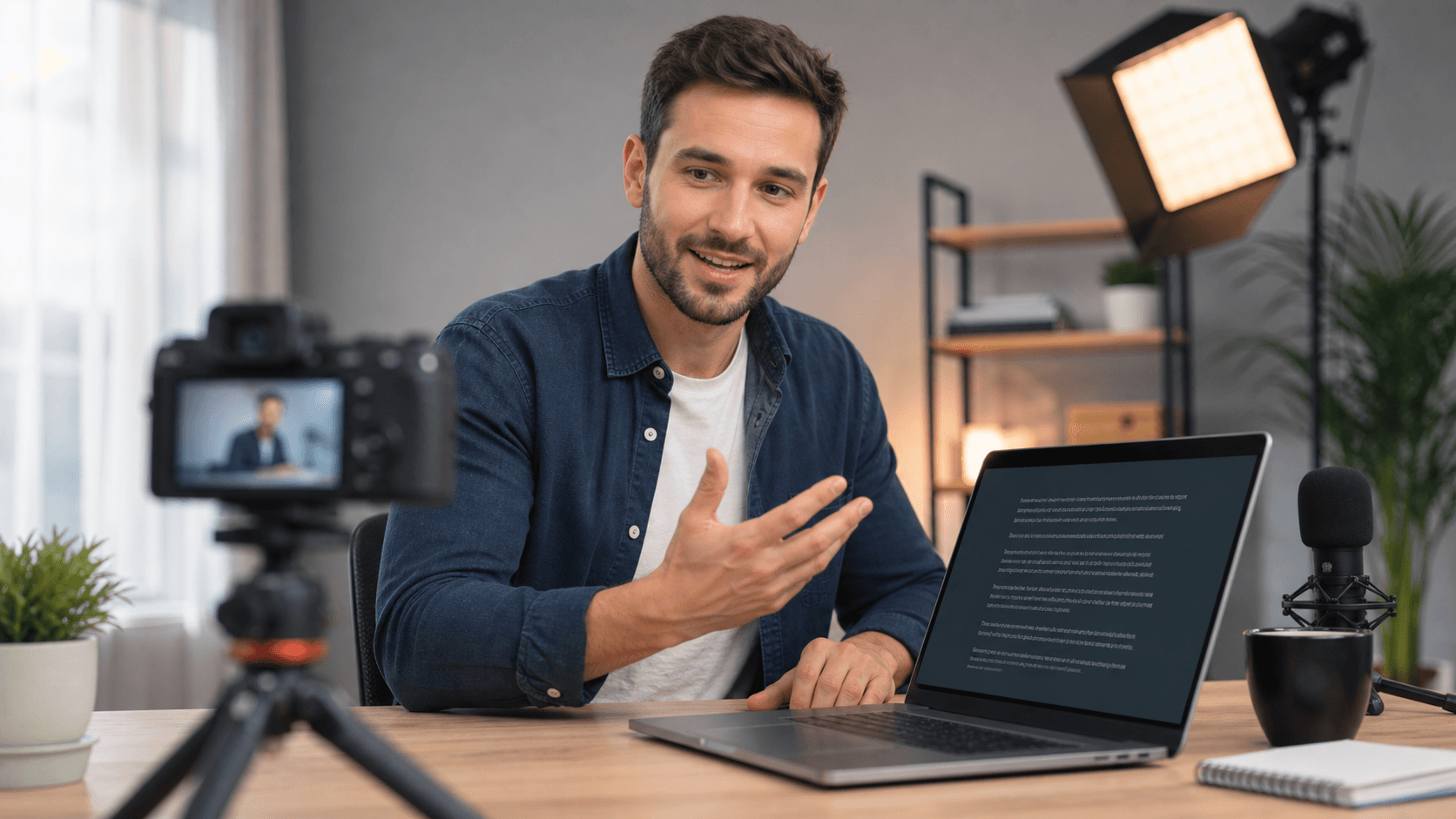
A good YouTube teleprompter setup should help you stay structured without making your delivery stiff. The goal is not to read every word like a news anchor. The goal is to keep your intro, teaching points, transitions, and call to action visible while you speak naturally to the camera.
Start with the right script format
Most YouTube scripts fail on a teleprompter because they are written like essays. Long paragraphs look neat in a document, but they are hard to read while looking into a camera. Break your script into short speaking blocks of one to three sentences. Each block should represent one idea, example, transition, or CTA.
For tutorials and educational videos, use headings inside the script itself. A heading like Problem, Step 1, Demo, Recap, or CTA gives your eyes a quick anchor while the teleprompter is moving. This also helps you recover smoothly if you pause, repeat a line, or restart a section.
Place the teleprompter close to the camera lens
Eye-line is the detail viewers notice even when they cannot explain it. If your laptop or phone is far away from the lens, your eyes will appear to drift. Keep the script as close to the camera as possible. On a laptop, place the camera near the top center of the screen. On a phone setup, position the phone near the lens or use a small teleprompter glass rig.
If you are using a webcam, raise the laptop so the lens is near eye level. Looking down at a teleprompter makes even confident speakers look less direct. A stack of books, a laptop stand, or a simple tripod can improve the setup immediately.
Choose slower scrolling than you expect
Creators often set the teleprompter speed too fast because they test it silently. Speaking out loud is slower than reading in your head. Start with a slower pace, record a 30-second test, then adjust. The right speed gives you time to breathe, emphasize important lines, and sound conversational.
If your video includes technical explanations, slow the teleprompter down for definition-heavy sections. If the script is a short intro or hook, you can increase speed slightly, but avoid chasing the text. The teleprompter should follow your delivery, not pressure it.
Use the browser recording stage for practice takes
A browser teleprompter is useful because you can test the entire flow before opening another recording app. Paste the script, adjust font size and speed, open the camera stage, and record a practice take. Watch it back for eye-line, pacing, and whether the script sounds natural.
Practice takes are especially helpful for YouTube intros. The first 20 seconds matter, and a teleprompter can make that opening sharper. If the intro still sounds robotic, rewrite the first lines as if you were explaining the idea to one person.
Quick checklist
Before you record
- Break the script into short speaking blocks.
- Place the prompt close to the camera lens.
- Set font size large enough to read without squinting.
- Start with slower speed and adjust after a test recording.
- Use voice scroll for conversational videos where pace changes naturally.
FAQ
Common questions
Should YouTube creators read scripts word for word?
Not always. Word-for-word scripts are useful for intros, sponsorship reads, product demos, and course lessons. For opinion or story-driven videos, a structured outline with short prompt blocks can sound more natural.
What font size is best for YouTube teleprompter reading?
Use the largest size that still keeps enough lines visible. If you are more than a meter from the screen, increase the font size and slow the scroll slightly.
Related reading